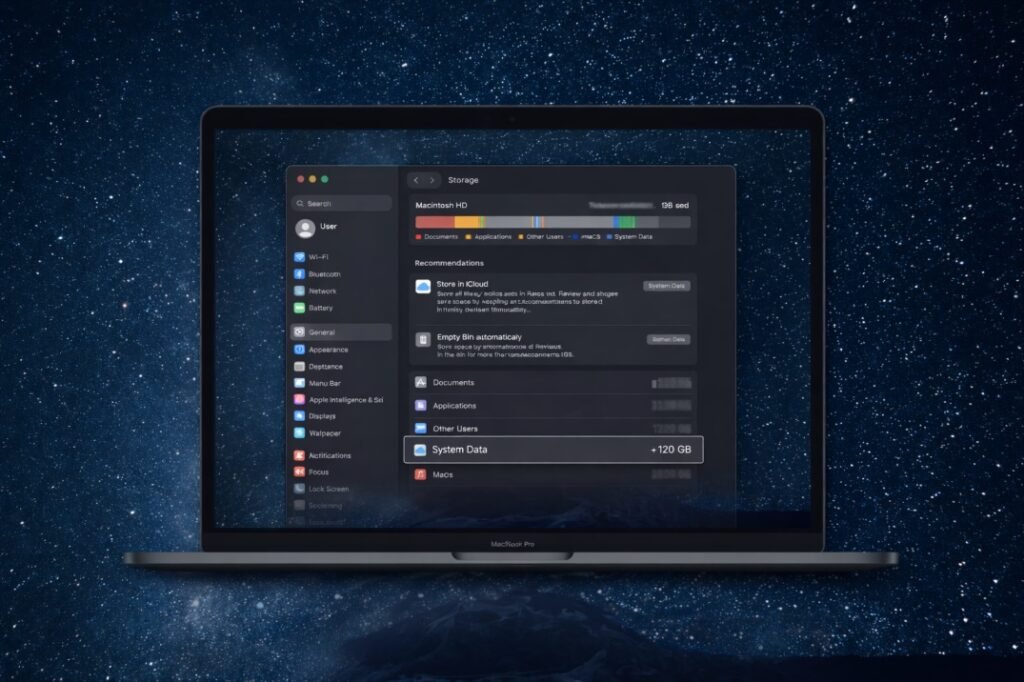
How to Free Space on Mac System Data: If your Mac is showing System Data taking 100GB+ space, and you’re confused because you can’t see any big files — you’re not alone.
I was stuck in the same situation.
My Mac (256 GB) suddenly showed:
- System Data: 137 GB
- Free space: almost nothing
- System started lagging
- Apps were slow
- Storage warning notifications kept appearing
No movies.
No heavy downloads.
Nothing obvious to delete.
So instead of panicking or installing random “Mac cleaner” apps, I decided to understand what System Data really isand fix it step by step — safely.
This article is my exact journey, showing how to free space on Mac System Data without breaking macOS or losing data.
Important Disclaimer (Please Read Once)
This guide:
- ✅ Does NOT delete your apps
- ✅ Does NOT delete documents, photos, or personal files
- ✅ Does NOT disable SIP (System Integrity Protection)
- ❌ Does NOT recommend third-party cleaner apps
- ❌ Does NOT force-delete protected macOS files
If you follow the steps in the same order, it is safe.
Step 0: Restart Your Mac First (Don’t Skip This)
Before touching anything:
- Restart your Mac once
- After reboot, go toSystem Settings → General → Storage
Sometimes macOS clears temporary system files automatically.
If System Data is still very high, continue.
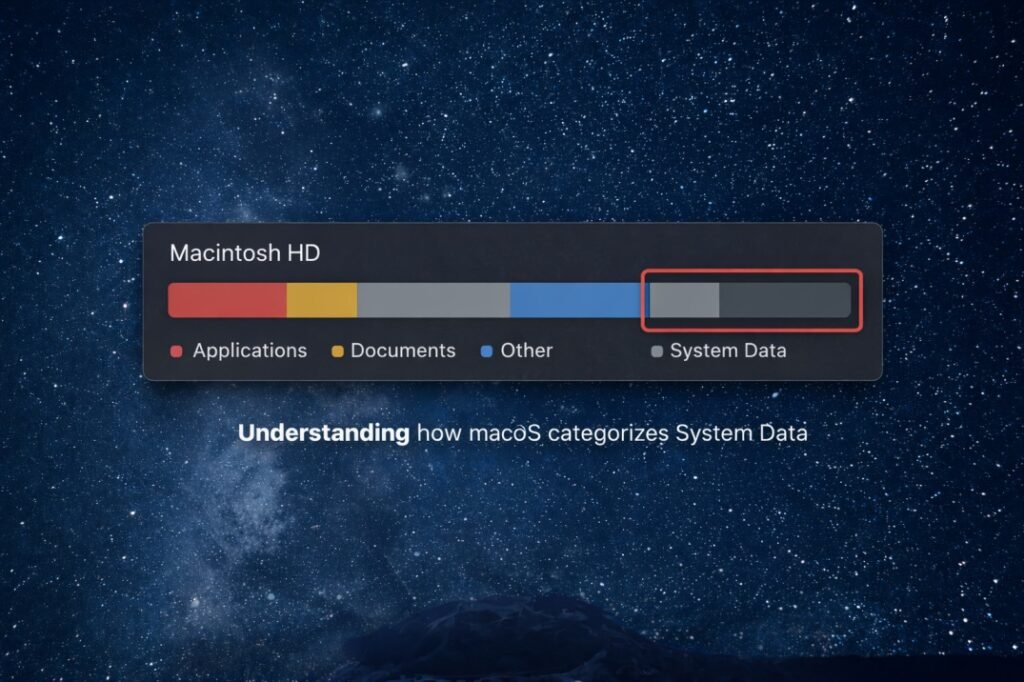
Step 1: What Is “System Data” on Mac (In Simple Words)
System Data is not one thing. It’s a mix of:
- Time Machine local snapshots
- macOS update leftovers
- App caches
- Logs
- Developer tools junk
- iPhone backups
- Temporary system files
Apple doesn’t explain this clearly, which is why most users get stuck here.
Step 2: Remove Time Machine Local Snapshots (Biggest Win)
macOS silently stores local Time Machine snapshots, even if you don’t use an external drive.
Check if snapshots exist
Open Terminal and run:
tmutil listlocalsnapshots /If you see entries like:
com.apple.os.update-XXXXThese snapshots can take 10–40 GB.
Delete them safely
sudo tmutil thinlocalsnapshots / 999999999999 4Enter your Mac password (you won’t see typing).
👉 After this, restart your Mac.
This step alone freed a huge amount of space for me.
Step 3: Clear User and System Cache (Safe)
Cache files grow silently over time.
Clear user cache
rm -rf ~/Library/Caches/*If asked for confirmation, type y.
Clear system cache
sudo rm -rf /Library/Caches/*⚠️ You may see messages like “Operation not permitted” — that’s normal.
Apple protects some files. Do not try to force delete them.
Step 4: Remove macOS Update Leftovers
Sometimes updates leave unnecessary files behind.
Check:
ls /Library/UpdatesIf files exist:
sudo rm -rf /Library/Updates/*Step 5: Delete Old iPhone / iPad Backups (If Any)
If you ever backed up an iPhone to your Mac, this folder can be huge.
Check:
ls ~/Library/Application\ Support/MobileSync/BackupIf folders exist and you don’t need them:
rm -rf ~/Library/Application\ Support/MobileSync/Backup/*Step 6: Identify the Real Space Hogs (Most Important Step)
Instead of guessing, measure exactly what’s taking space.
Run:
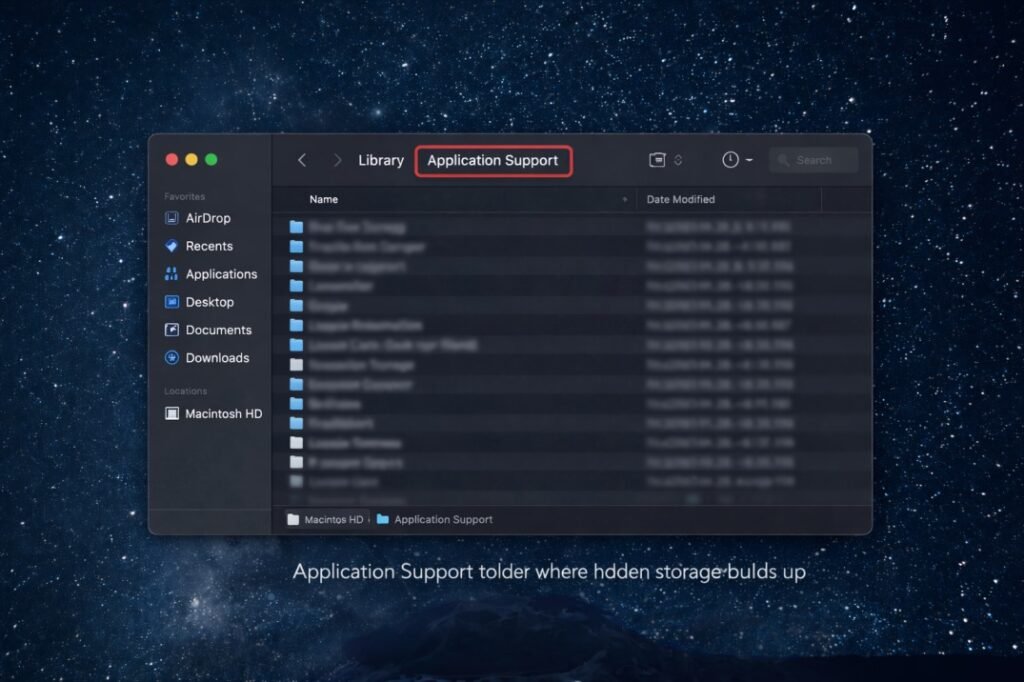
du -sh ~/Library/Application\ Support/* | sort -h | tail -n 15This shows the largest folders inside Application Support.
In my case, the biggest culprits were:
- Google (Chrome data) → ~12 GB
- Developer folders
- Installer leftovers
- Browser-related data
Step 7: Delete Only What You Understand
From the list, I safely deleted:
- Google (Chrome cache & profiles)
- Installer leftovers
- Browser cache folders
⚠️ I did NOT delete:
- AddressBook
- iCloudDocs
- Apple system folders
- Anything I didn’t clearly understand
Rule I followed:
If you don’t know what it is — don’t delete it.
Step 8: Developer Folder Cleanup (Optional but Powerful)
If you are not actively coding right now, this step can free massive space.
rm -rf ~/Library/Developer/*This removes:
- Simulators
- SDK caches
- Old developer junk
💥 This single step freed 15–40 GB in my case.
Step 9: Restart (Mandatory)
After all cleanup:
- Restart your Mac
- macOS recalculates System Data only after reboot
Do not judge results before restarting.
Final Result (My Real Numbers)
Before:
- Used: ~233 GB
- System Data: 137 GB
- Free space: almost nothing
After:
- Used: ~194 GB
- Free space: 50+ GB
- System Data: ~98 GB
This is normal and healthy for macOS.
Why You Should NOT Chase 0 GB System Data
macOS always keeps:
- Swap memory
- Spotlight index
- Core frameworks
- Protected caches
Trying to delete everything:
- Breaks updates
- Causes instability
- Is not worth it
A smooth system is better than a “perfect” number.
FAQs – How to Free Space on Mac System Data
Is it safe to delete System Data on Mac?
Yes, some parts are safe (snapshots, caches, backups).
Never try to delete protected system files.
Why is System Data so large even after cleanup?
Because macOS keeps:
Core system files
Swap memory
Protected caches
This is normal.
Should I use Mac cleaner apps?
No. Most:
Delete blindly
Cause permission issues
Create more problems later
Manual cleanup once is better.
How often should I clean System Data?
Once every 2–3 months is enough for normal users.
Will this method work on macOS Sonoma / Ventura?
Yes. These steps work on modern macOS versions.